How to sign in, enter the verification code, reset a forgotten password and register a company. After you sign in, the full manual for your role is under User manual in your account menu.
Draft: the Arabic text has not been reviewed by a native speaker yet. Screenshots will be added.
Sign in to the back office
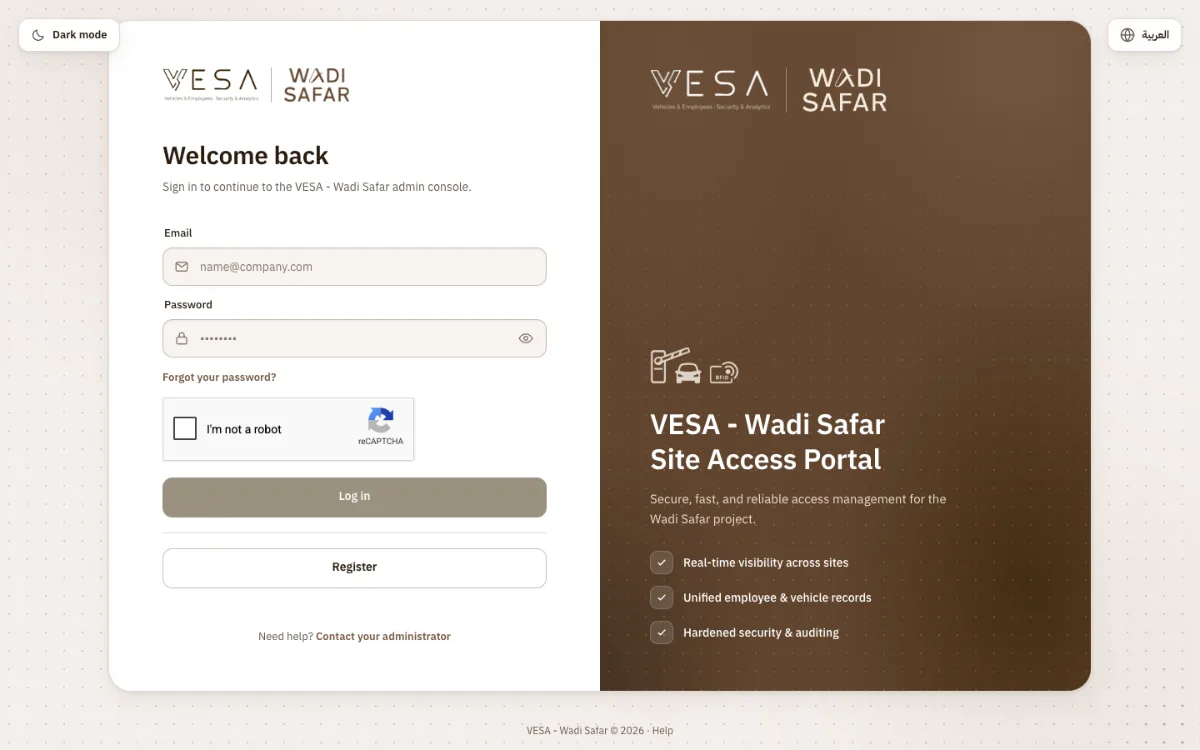
P-07 · Login — empty form in English, reCAPTCHA visible, Log in disabled
Open the back-office address you were given. The Welcome back page opens.
Type your Email and Password. Select the eye icon to show the password while you type.
Tick the reCAPTCHA box (“I’m not a robot”). Log in stays disabled until you do.
Select Log in.
If a verification code is requested, follow Enter the verification code. Otherwise your home page opens (see What opens after you sign in).
Enter the verification code
When two-factor authentication is on for your account, the back office emails you a code after your password is accepted.
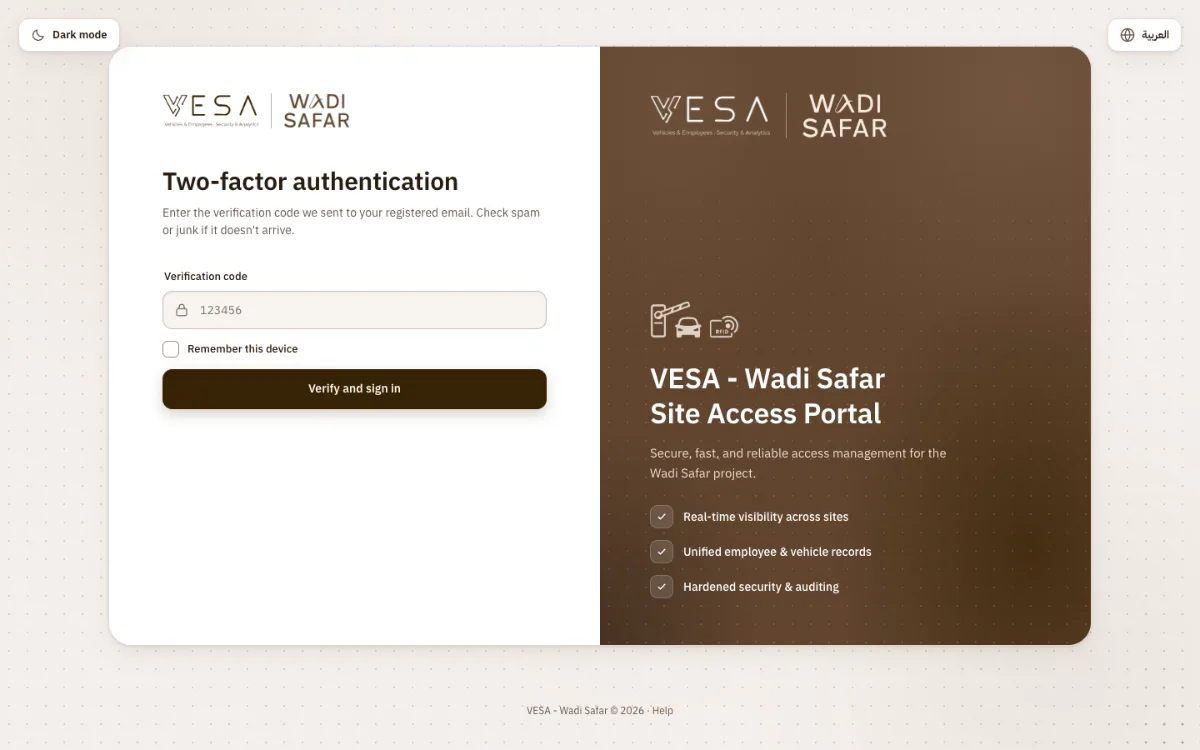
P-08 · Two-factor authentication — code field empty, Remember this device unticked
The Two-factor authentication page opens. Open the email with the code. Check spam or junk if it has not arrived.
Type the code in Verification code.
Tick Remember this device only on a computer that is yours and not shared.
Select Verify and sign in.
Reset a forgotten password
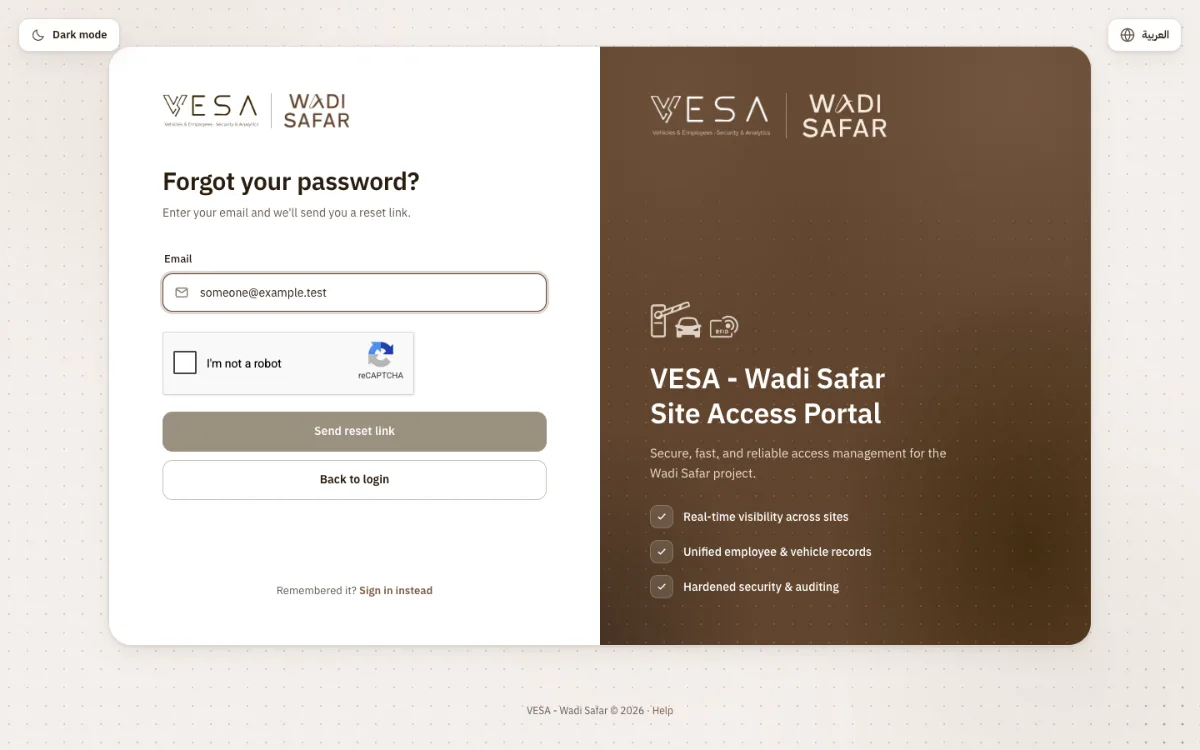
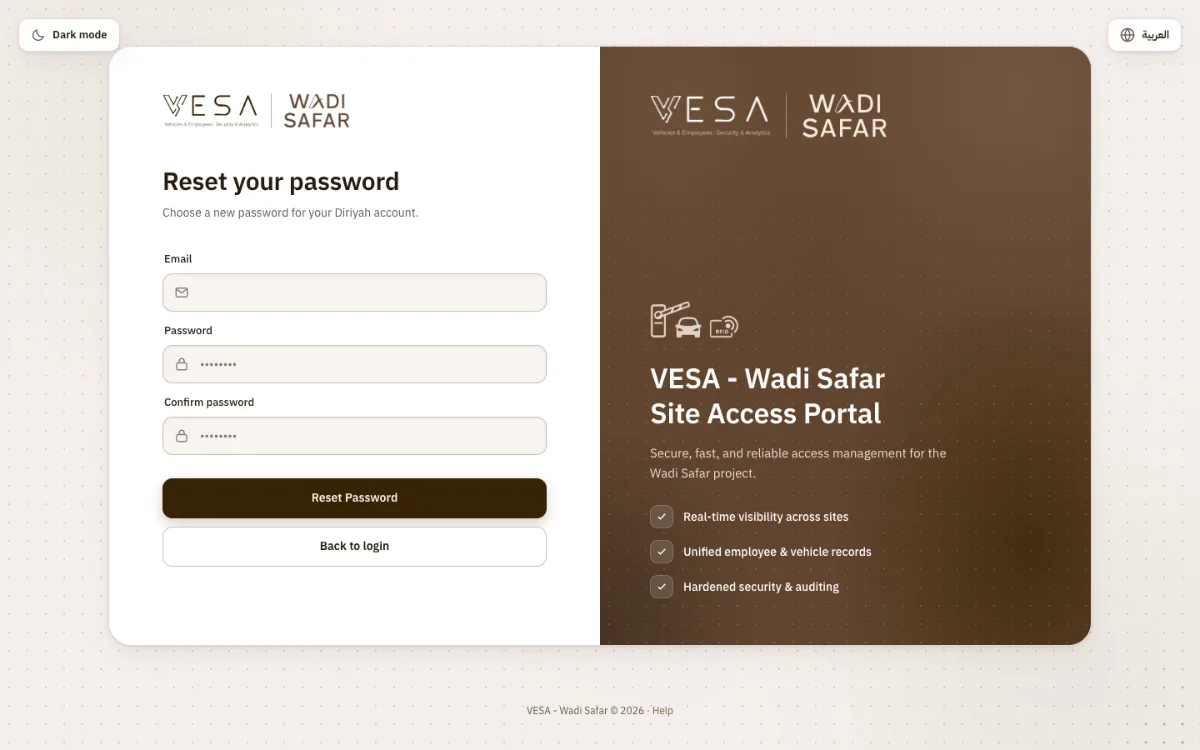
P-04 · Forgot your password? — email typed, reCAPTCHA still to tickP-10 · Reset Password — the page opened from the email link
On the sign-in page select Forgot your password?
Type your Email, tick the reCAPTCHA box and select Send reset link.
The Check your email page opens. Open the email and select the link in it.
On Reset your password type your Email, the new Password and Confirm password.
Select Reset Password, then sign in with the new password.
Register a new PMC (self-registration)
Self-registration is for PMC companies only. Supervision consultants, contractors and sub-contractors do not register themselves: they send their documents to their PMC (or to the company above them), which adds them.
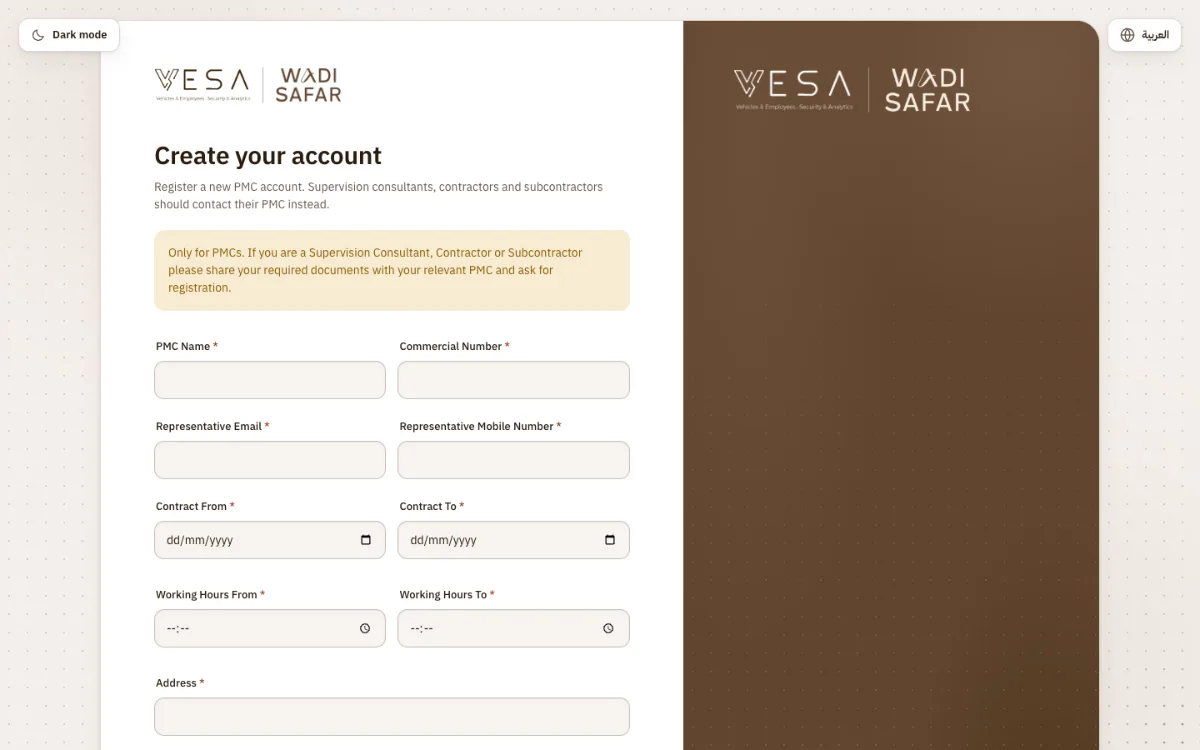
P-01 · Register — empty form with the PMC-only warningP-07 · Log in — success message after the request was submitted
On the sign-in page select Register. The Create your account page opens.
Type PMC Name, Commercial Number, Representative Email and Representative Mobile Number. The mobile number is 10 digits and starts with 05.
Set Contract From, Contract To, Working Hours From and Working Hours To, then type the Address (up to 150 characters).
Choose the Logo (required; .jpg, .jpeg or .png, up to 2 MB).
Under File, choose your company documents: at least one and up to 10 files, .jpg, .jpeg, .png or .pdf, each up to 2 MB.
Tick I approve all policies and regulations and the reCAPTCHA box, then select Create account.
The sign-in page opens with Your request has been submitted successfully. We will get back to you soon. You receive a confirmation email, and DC is notified. Your company is now New and you cannot sign in yet.
Sign in to the mobile app
The mobile app is for: DC Administrator, PMC, Supervision Consultant, Contractor, Sub Contractor, Security Site Manager, Security Site Employee and Safety Check Officer. Printing, Receptionist, DC Security Manager and Technical Manager use the back office only.
M-02 · Welcome back — email and password fields, Login buttonM-03 · Verify it’s you — 6-digit code field
Open VESA on your phone. After the start screen, Welcome back opens.
Type your Email and Password, then select Login.
If Verify it's you opens, type the code from your email in Verification code and select Verify.
The app opens on your role's screen: Security Site Employee on Home; Safety Check Officer on Checks; Security Site Manager on Approvals; everyone else on Delivery Requests.